

Google Pay is an easy, secure, and private way to pay
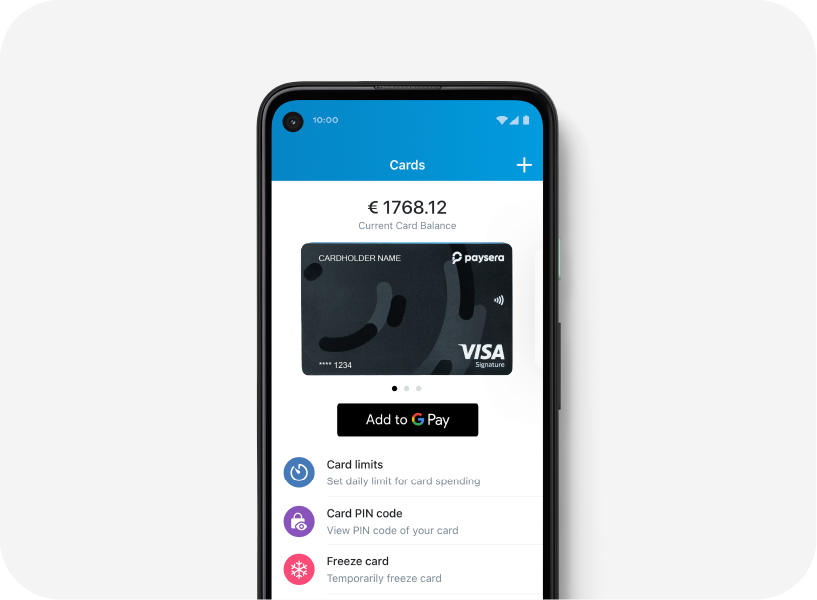
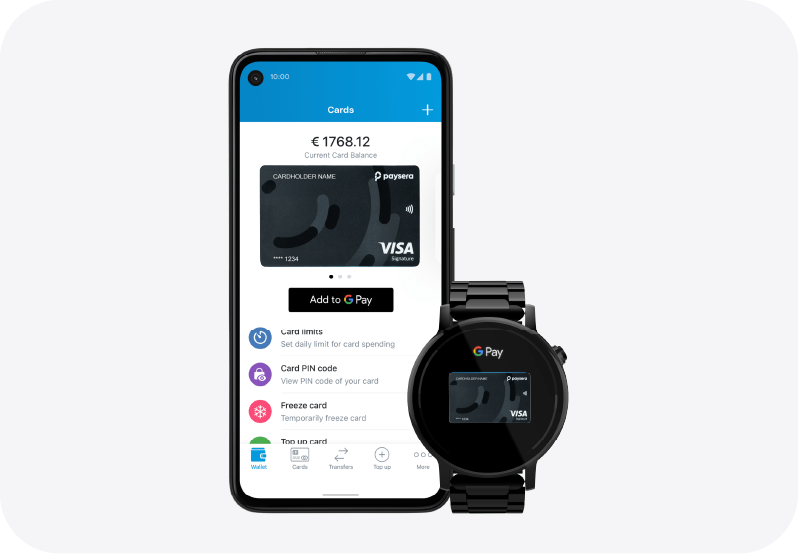
1. Open Google Wallet
Opens Google Wallet and select “Add to Wallet".
2. Add a payment card
Select “Payment card” and either:
-
scan the card using the phone’s camera, or
-
enter the card details manually.
3. Accept terms and conditions
Review and accept the relevant terms and conditions.
4. Verify the card
Complete the required verification, for example via:
-
SMS/OTP,
-
banking app, or
-
another verification method provided by the bank

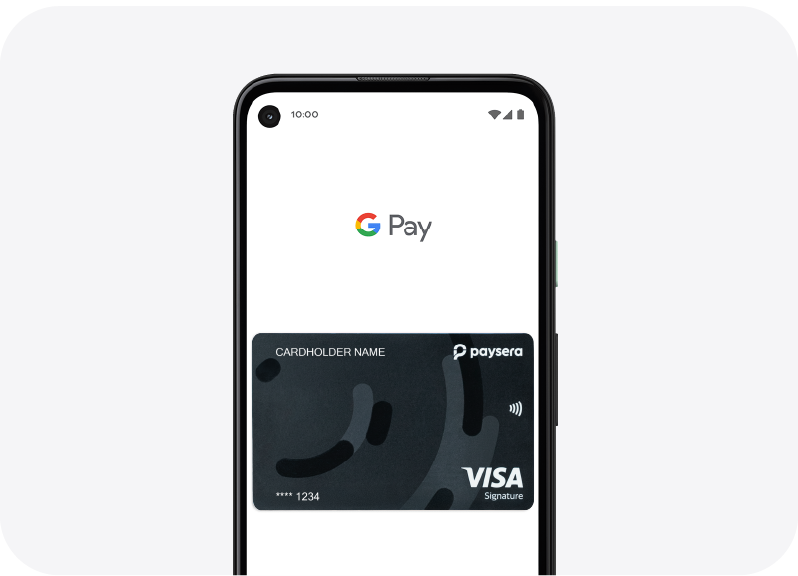
5. Card added successfully
You will receive confirmation that the card has been successfully added to Google Wallet.
6. Set as default card (optional)
You can choose the card as the default payment card for contactless payments.
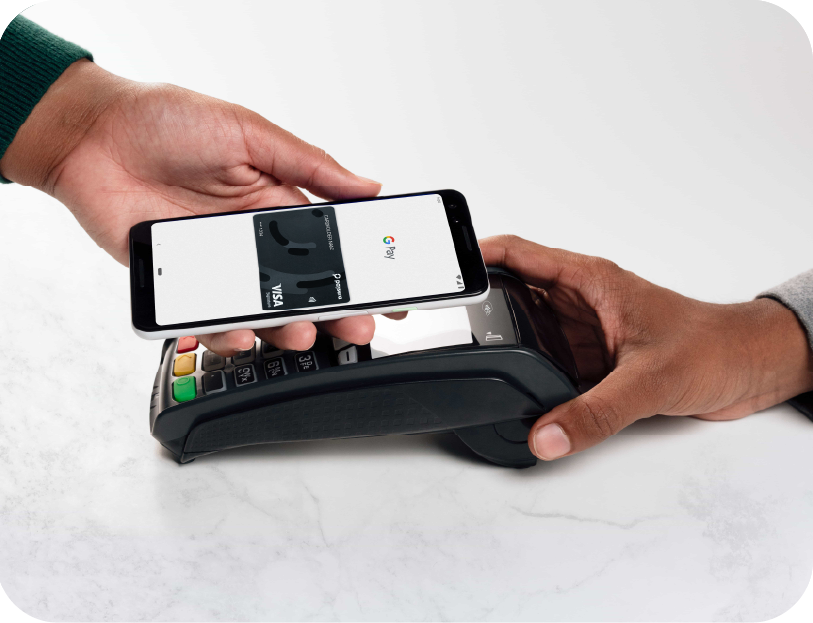
7. Make a payment
At a contactless-enabled POS terminal, you have to:
-
unlock your phone,
-
hold the phone near the terminal,
-
authenticate if required.
8. Payment confirmation
The payment is approved, and you will see the transaction confirmation on the terminal and/or phone.
Pay Wherever You Already Shop

| Where | How |
|---|---|
| Shop |
Wherever you see the Google Pay or contactless symbol, simply hold your Android device near the terminal. |
|
Online |
Tap the Google Pay button on any website where Google Pay is available as a payment option. |
|
App |
Tap the Google Pay button and confirm with Face ID in one touch. |
To use Google Pay, you need a supported card from a participating card issuer. Google Pay is not available in all markets. Features may vary. For information about Google Pay availability, please contact Paysera.
TM and © 2025 Google Inc. All rights reserved