
Payment automation for business: dozens of invoices a day without manual entry


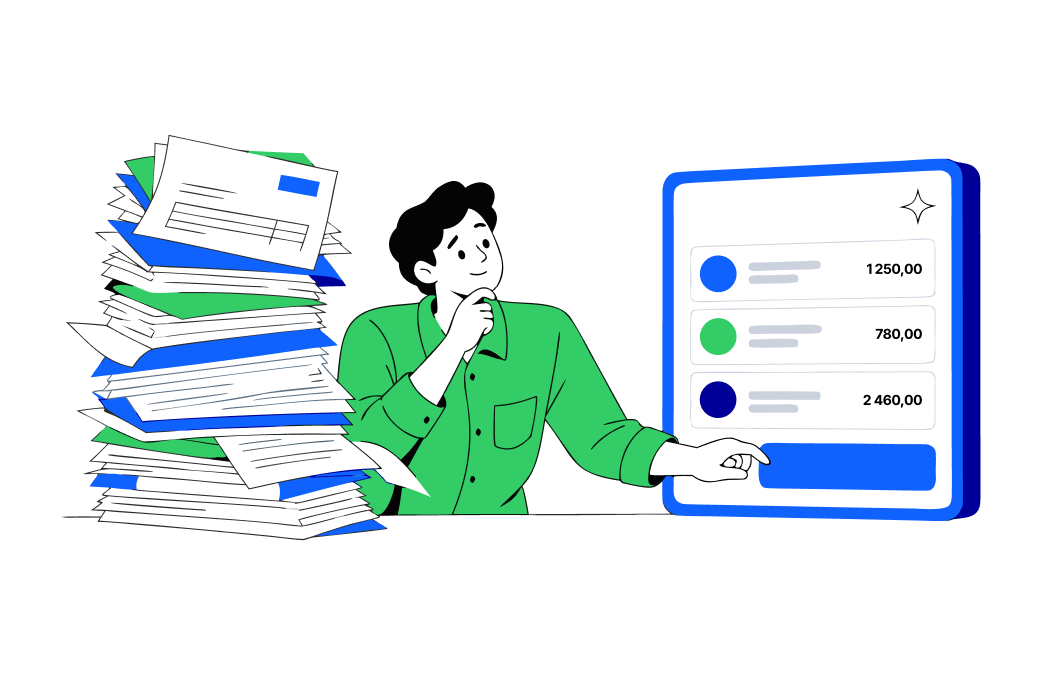
As a business grows, so does the stack of supplier invoices. Raw materials, logistics, marketing, utilities, software subscriptions... When dozens of invoices land every day, processing them takes up a large part of your accountant’s or manager’s time.
Can you hand this routine over to artificial intelligence without putting your company’s finances at risk? Yes, as long as you follow one simple rule.
What has changed?
Until now, companies have mostly had two options. They could type in payment details by hand or invest in complex integrations between their ERP system and the bank.
Every European bank has an open banking API, but it is built for licensed third parties. Almost none of them let account holders access their own accounts this way.
Paysera clients can create a token themselves, free of charge and with no separate agreement. It works with both business and personal accounts. Connect it to the official Paysera AI assistant skill, and you can automate the preparation of payments.
The golden rule: the assistant prepares, you sign
When companies automate their finances, staying in control is what matters most.
That is why the solution follows one principle: a human always makes the final decision.
What does this look like when you receive 30 invoices a day?
- Reading: the AI assistant reads the invoices you receive, whether they come by email, as PDF files, or from an internal system.
- Drafting: with your personal access token, the assistant prepares 30 draft payments in your Paysera account within seconds.
- Approving: your accountant or company manager logs in to Paysera, reviews the list of prepared payments, and approves them in the Paysera Super App.
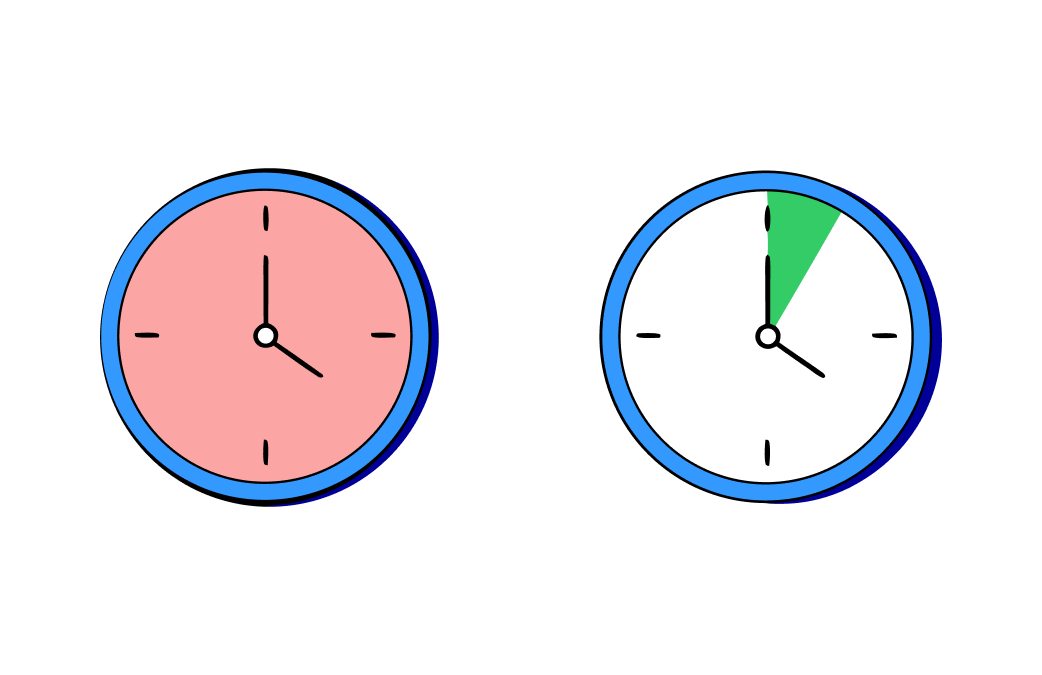
How much time can you save?
Here is how a typical working day compares for a company that receives 30 supplier invoices:
| Process | Traditional way | With AI and an access token |
|---|---|---|
Data entry |
About 60 min (2 min per invoice) |
A few minutes (done by the assistant) |
Risk of errors |
High (mixed-up IBANs or amounts) |
Much lower, as you see every draft before approving it |
Review and signing |
Included in data entry time |
About 2–3 min (one approval) |
Time saved |
– |
About 20 hours a month |
How do you set limits on a token?
When you create a personal access token in online banking, you decide exactly what it can do:
Permissions: choose what the token is allowed to do. It can view account details, balances, transfers, and statements, or create and cancel transfers. It cannot sign transfers, as signing always stays with you.
Accounts: limit the token to one specific account.
Expiry date and IP addresses: set the date when the token stops working and, if needed, allow it to work only from your company server’s IP address.
Spending limits: if the token is allowed to create transfers, set a limit for a single transaction and a total daily limit.
Prepared transfers: transfers that have been created but not yet signed appear in online banking under Transfers › Transfer list, in the Unsigned tab.
One-click revocation: if anything looks wrong, you can switch the token off straight away.
How do you create a token?
The whole process is self-service:
- Log in to Paysera online banking.
- Go to Settings › Profile settings.
- Under Security settings, find Personal access tokens.
- Choose the permissions and accounts you need, and create your token.
- Copy the token right away. It is shown only once, and you will not be able to view it later.
- Connect the token to your AI assistant (the Paysera Payments skill) or to your internal tools through the public Paysera Transfer API.
How do you connect an AI assistant?
Paysera has released an open-source skill for Claude Code. Its code is public, so you can read it before you install anything.
Install the skill via the terminal
claude plugin marketplace add paysera/skills
claude plugin install paysera-payments@paysera-skills
Configure settings
Save the token to ~/.config/paysera-payments/token. Then open the skill’s create-payment.py file and set the account you pay from and the name the beneficiary will see as the payer.
After that, give the assistant an invoice and ask it to prepare a transfer.
Want to connect your own system instead? The token is sent as a standard HTTP header, Authorization: Bearer, to api.paysera.com, so no extra library is needed. You will find examples in curl, PHP, Python, and JavaScript in the Paysera developer documentation.
Frequently asked questions
Can AI send money without me?
No. The token cannot sign transfers. The assistant only prepares a transfer, and you sign it in the Paysera Super App with two-factor authentication.
How much does the token cost?
The token is free and does not require a separate agreement. Standard Paysera fees apply to the transfers themselves.
Do I need a developer?
Not to create the token, as you do everything in online banking. You do need a program that will use it, though: either the ready-made Paysera skill or your own system.
Which AI assistants does it work with?
The official Paysera skill is built for Claude Code. The token itself works with any tool that connects to the Paysera Transfer API.
How do I revoke a token?
Log in to online banking and open the section where you created the token. There you can pause it and switch it back on later, or delete it for good.
How is this different from a standard API integration?
A standard integration means creating a project and setting up OAuth 2.0 authorisation. A token lets you skip that step. You create it yourself and can start using it straight away.
Ready to automate your financial routine?
Create a personal access token in online banking in just a few minutes. It is free and fully self-service.